
The bottom line: Google Merchant Center suspensions usually stem from ‘Misrepresentation’ policy violations, signaling a fundamental trust issue rather than simple feed errors. Resolving this demands perfect consistency in price, availability, and shipping details across the feed, landing page, and checkout, as data mismatches are the leading cause of enforcement.
Are you losing sleep over sudden Google Merchant Center suspension feed issues that completely flatlined your revenue? We strip away the vague policy jargon to show you exactly why Google’s bots flagged your account and how to fix the specific data mismatches responsible.
You will discover the exact triage checklist and hidden technical debts that experts use to recover accounts when a simple re-upload fails.
- Merchant Center “bans” are usually two things: account policy + item data failures
- The Big 3 Data Mismatches That Cause Most Enforcement
- When a Clean Feed Isn’t Enough: Misrepresentation Escalators
- The Technical Debt: Structured Data Conflicts and Slow Updates
- Your Triage Checklist to Stop the Bleeding and Prevent Future Suspensions
Merchant Center “bans” are usually two things: account policy + item data failures
It’s not a “feed ban,” it’s a trust issue
Stop calling it a feed ban. Most severe Google Merchant Center suspensions aren’t triggered by a typo in your CSV file. They happen because Google stopped trusting you.
The real enemy is the Misrepresentation policy. This is an account-level judgment call by Google’s bots. They think your business model is misleading, not just that a product is wrong. It is a massive headache to fix.
These complex trust signals are messy and often costly to resolve without expert eyes. You need to audit everything.
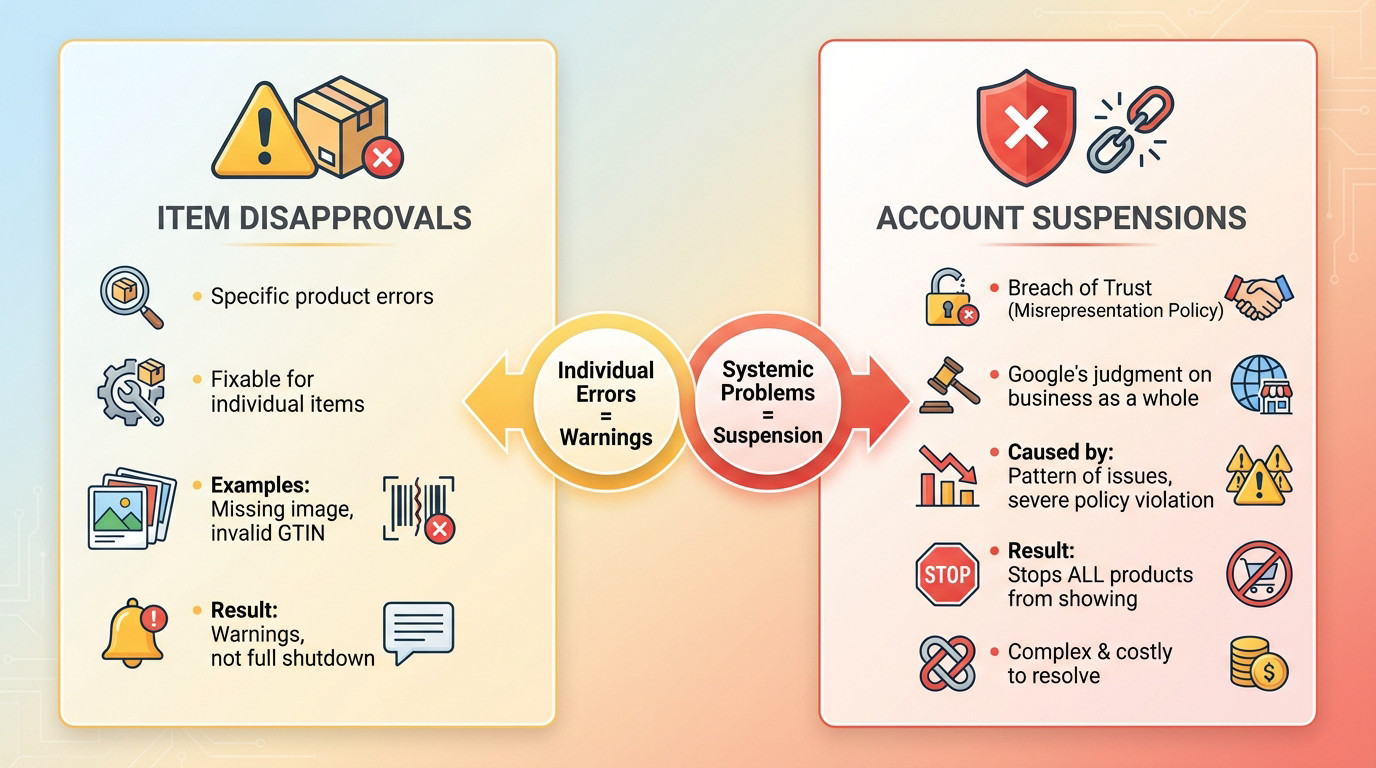
Why Google separates item disapprovals from account suspensions
Think of item-level disapprovals as simple warning shots. These are specific errors like a bad image or missing GTIN. They do not shut down your entire business operation.
Compare that to an account-level suspension. This is the nuclear option. Google detects a pattern of bad data or policy breaches. They instantly block every single product from showing in Shopping ads.
Individual errors get warnings. Systemic failures get you suspended.
The Big 3 Data Mismatches That Cause Most Enforcement
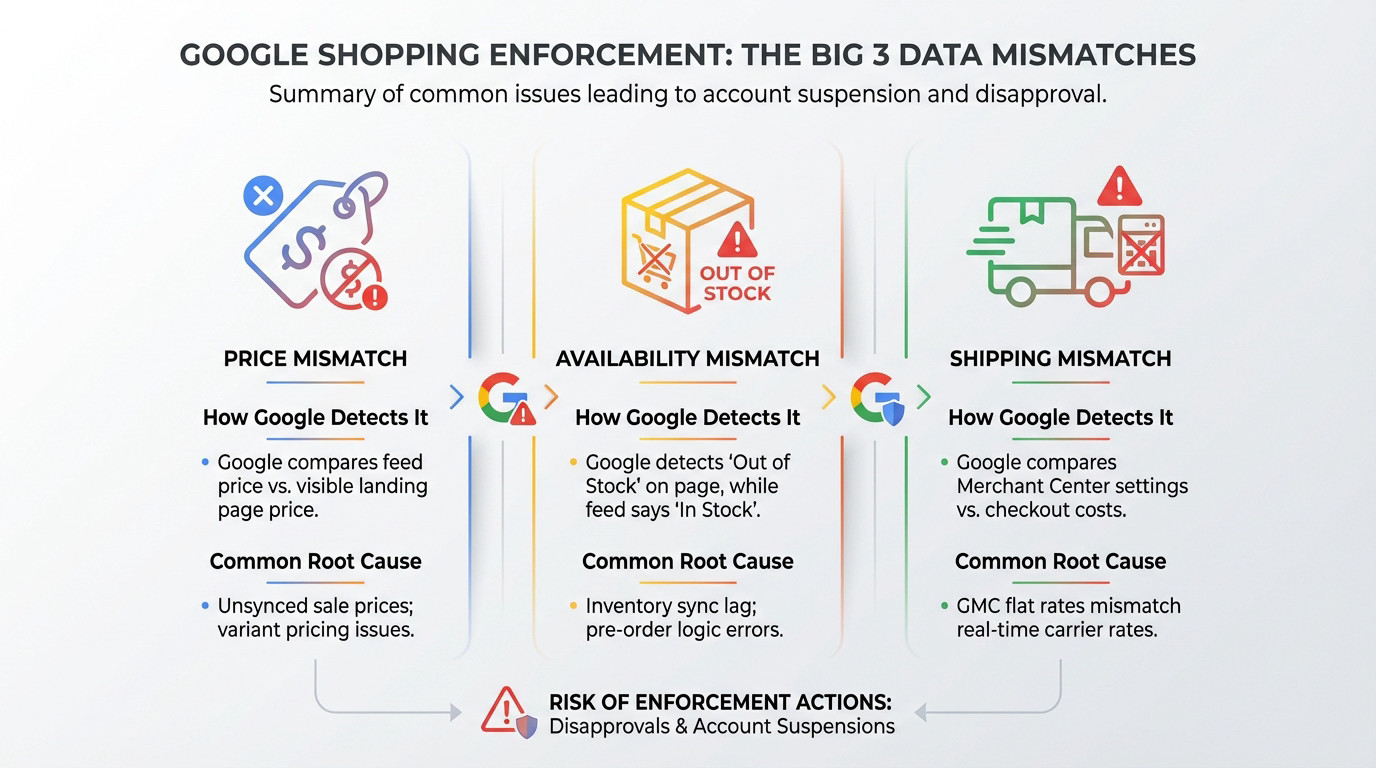
So, what triggers these enforcement actions? It usually boils down to three core data mismatches that Google’s bots are constantly checking.
Price and Availability: The Most Common Offenders
Google crawls your landing pages to hunt for Google Merchant Center suspension feed issues. It compares what it sees there with your feed data. The most frequent flags are for price and availability mismatches.
Google’s logic is simple: the price and stock status in the ad must exactly match the landing page. No exceptions.
- Variant pricing: The default page price differs from the feed because a different variant is selected.
- Sale prices: The site shows a sale, but the feed’s
sale_priceattribute hasn’t updated. - Currency conversion: IP-based converters clash with fixed feed currencies.
- Structured data errors: Hidden schema markup contradicts the visible price users see.
Shipping Mismatch and Transparency Failures
Shipping is the third leg of the stool. The shipping cost and speed configured in Merchant Center must align with what users see at checkout.
Merchants often trip up on complex rules. Unclear free shipping thresholds or hiding costs until the final step looks deceptive to Google.
| Mismatch Type | How Google Detects It | Common Root Cause |
|---|---|---|
| Price Mismatch | Page crawl compares feed price to visible price on landing page. | Sale prices not updated in feed; variant pricing issues. |
| Availability Mismatch | Page crawl sees “Out of Stock” while feed availability is “in stock”. | Inventory sync lag; pre-order logic not mapped correctly. |
| Shipping Mismatch | Compares Merchant Center settings to costs revealed during checkout. | Flat rates in GMC don’t match real-time carrier rates at checkout. |
When a Clean Feed Isn’t Enough: Misrepresentation Escalators
But fixing those data points is only half the battle. You can have a perfectly synced feed and still get suspended if your site fails the overall trust test.
Your Site Promises What Your Business Can’t Deliver
This is where standard Google Merchant Center suspension feed issues escalate to Misrepresentation. It happens when your site’s overall message is deceptive. For example, showing a huge “50% Off” banner, but the discount isn’t actually applied at checkout or in the feed.
Another classic escalator is a bait-and-switch on the landing page. The ad shows one product, but the link goes to a different variant, a category page, or an out-of-date model.
This isn’t a simple data error; it is a fundamental user experience deception.
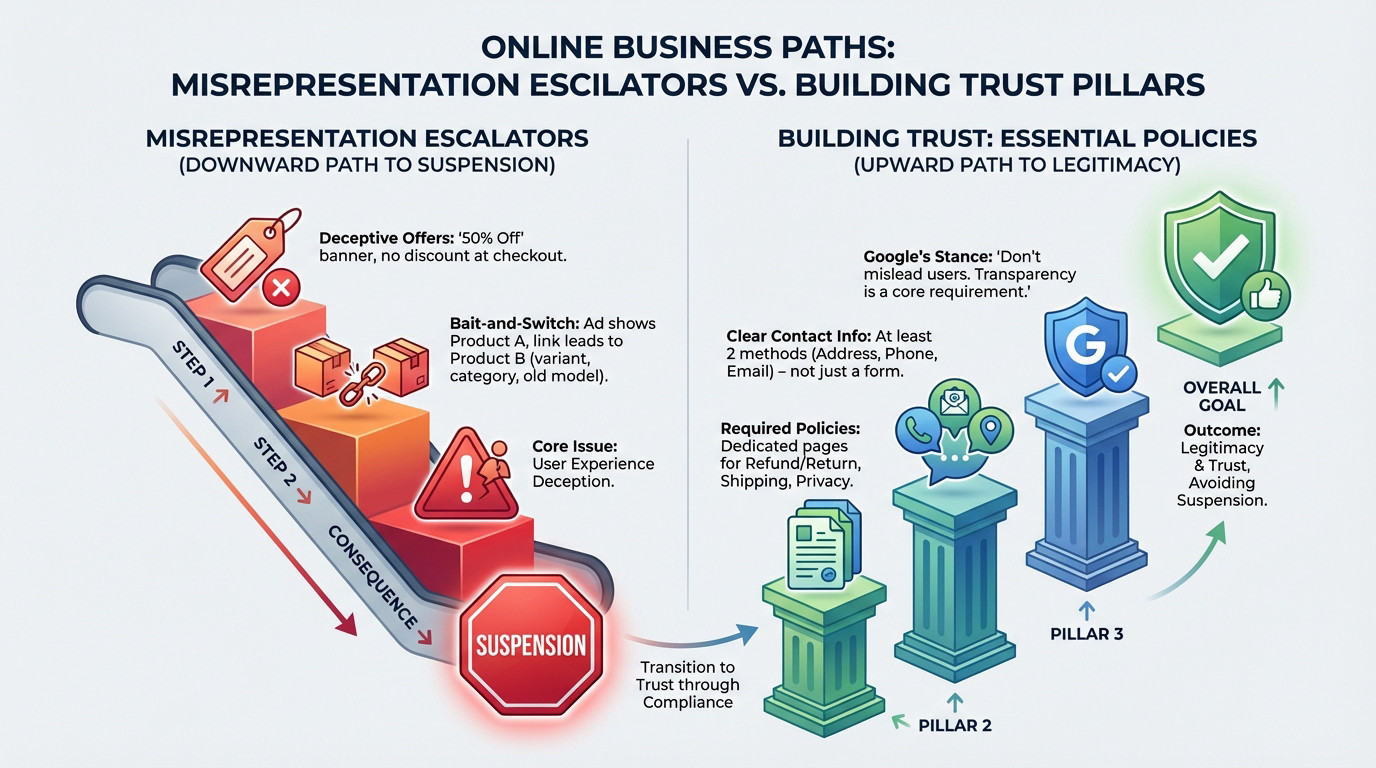
The Missing Pieces: Contact, Returns, and Shipping Policies
Google expects your business to be legitimate and transparent. A huge part of that is having clear, easily accessible information. This simply isn’t optional for any merchant.
You absolutely must have dedicated pages for your refund/return policy, shipping policy, and privacy policy. Critically, you need a contact page with at least two methods: physical address, phone number, or email. A simple contact form is not enough.
Hiding this information makes you look untrustworthy, and it’s a fast track to a dreaded Misrepresentation suspension.
Google’s policy is explicit: they don’t want users to feel misled. Being upfront about your business and your offer isn’t just good practice, it’s a core requirement.
The Technical Debt: Structured Data Conflicts and Slow Updates
Even if your site policies are solid and your feed seems correct, technical conflicts happening behind the scenes can still sabotage your account.
The Three-way Fight: Feed vs. Page vs. Schema
Think of it this way: there are three sources of truth for your product data. You have the feed you submit, the visible content on the page, and the invisible structured data (Schema) in your site’s code.
If these three sources disagree, you have a problem. Google’s “Automatic Item Updates” feature uses schema to correct your feed. But if your schema is wrong, it creates the exact Google Merchant Center suspension feed issues you want to avoid.
This is a common issue on platforms like Shopify or WordPress where apps or themes add incorrect schema.
Your Feed Is Right, But It’s Always Late
Sometimes the data is correct, but the timing is off. This is an update cadence problem. Your prices or stock levels change faster than your feed gets updated.
If you run daily flash sales but your feed only updates once a week via a file upload, you are guaranteeing price mismatches. This is a recipe for suspension.
For fast-changing data, you need a faster method, like the Content API.
Your Triage Checklist to Stop the Bleeding and Prevent Future Suspensions
Okay, enough with the problems. Let’s get to the fix. Here is the exact order of operations to diagnose and resolve these issues to get your account back.
The Step-by-Step Fix-It Plan
Stop guessing. Trying to resolve Google Merchant Center suspension feed issues by randomly resubmitting products is a recipe for failure. This is your triage playbook.
- Fix Systemic Mismatches First: Grab the example item IDs from Google’s warning email. Find the pattern causing price, availability, or shipping errors and fix the root source (like your pricing plugin).
- Audit Checkout & Policies: Correct your Merchant Center shipping settings to match checkout exactly. Make sure your contact, return, and shipping policy pages are clear and complete.
- Resolve Technical Conflicts: Validate your structured data. Verify it matches what is visible on the page and in the feed, then deactivate faulty schema if needed.
- Increase Update Frequency: If your data changes often, switch from a scheduled fetch to the Content API for near-instant updates.
- Request a Review: Only after fixing the underlying process, submit your account for re-evaluation. If you need help with a complex case, consider a Google Merchant Center account recovery service.
Building a QA System That Prevents the Next Suspension
Getting reinstated is one thing; staying reinstated is another. You need a simple quality assurance process because waiting for Google to tell you something is broken is a losing strategy.
Set up daily automated spot-checks immediately. Have a script or a person compare a random sample of 10-20 products: feed vs. landing page vs. checkout. Monitor the Diagnostics tab in GMC and set alerts for new issues. Contact us if you’re stuck.
The goal is to fix the broken process, not just the broken data. If you only fix the items Google flagged, the same problem will just happen again with different products.
Recovering your Merchant Center account isn’t about luck; it is about consistency. Google demands that your feed, site, and business reality align perfectly. Stop guessing and start auditing your data flow. If you have fixed the errors but still see that red banner, don’t risk a permanent ban—get expert help to reclaim your traffic.
FAQ
How long does a Google Merchant Center review actually take?
Google officially states that reviews can take up to seven days, though many are resolved within three. However, patience is vital here. If you request a review before you have genuinely fixed the root issue, you risk a rejected application and a mandatory “cool-down” period where you cannot request another review for a week.
Why is my account suspended for “Misrepresentation” when my products are legitimate?
This is the most confusing error for merchants. “Misrepresentation” rarely means your products are fake; it usually means Google doesn’t trust your business identity. This is triggered by missing contact details, opaque shipping costs, or a lack of clear return policies on your site. It is a trust score failure, not a product data failure.
Can I just delete the disapproved items to lift the suspension?
No, that rarely works for account-level suspensions. If your entire account is suspended for policy violations, deleting specific products won’t solve the underlying problem with your website or data processes. You need to fix the systemic issue—like the shipping rate mismatch or the missing contact info—rather than hiding the inventory.
Do I really need to display my physical business address?
Yes, absolutely. Transparency is non-negotiable for Google. If you are hiding your location, even if you are a dropshipper or work from home, Google views this as deceptive behaviour. You must provide a verifiable physical address and phone number in your Merchant Center and on your website’s contact page to build the necessary trust.